
How to Set Up TikTok Symphony AI Avatar Ads
Learn the exact steps to create a TikTok Symphony AI avatar ad — from account prerequisites to export — including avatar types, script input, advanced editing, and moderation. No extra cost or external tools required.
If the ad concept is already approved and the missing piece is a person on camera, TikTok Symphony can get you from script to avatar video without booking a creator, opening an external editor, or asking finance for another subscription. Symphony Creative Studio is included with a TikTok for Business Ads Manager account at no extra cost, and its avatar workflow can produce a draft creative in under 30 minutes when the script and product inputs are ready.[1][2] The tradeoff is also clear from the start: exported assets are AI-labeled, and the creative still has to clear TikTok moderation before it can run.[2][3]
This TikTok Symphony AI avatar ads guide assumes you are making a paid TikTok asset, not trying to disguise synthetic talent as organic UGC. The useful question is narrower: which avatar module should you use, what do you need to prepare, and where in the workflow do you make the edits that determine whether the video is launchable or just generated?
Before You Open Symphony
You need access to TikTok for Business Ads Manager and Symphony Creative Studio. There is no separate Symphony subscription, per-video fee, or per-seat charge described in TikTok's launch material for Creative Studio.[1] In practice, the constraint is not payment setup; it is whether the person making the creative has the right business account access and enough campaign context to make usable choices.
- Have the offer, landing page, and campaign objective ready before generating the video.
- Prepare a short script or a pre-recorded audio file; Symphony supports direct script entry and audio upload in the avatar workflow.[2]
- For Product avatars, prepare a clean product image and decide whether the avatar should hold, wear, or display the product.[2]
- Decide whether the output should be downloaded as an MP4 or synced directly to Ads Manager as a draft creative.[2]
- Build in time for review of AI labeling, claims, translated copy, lip-sync, and moderation status before launch.
If you are comparing this with broader generative video production, the main difference is workflow gravity. Tools covered in generative AI video ads for ecommerce often sit outside the media-buying platform. Symphony sits inside TikTok's own ad environment, which makes the last mile easier but also keeps the workflow tied to TikTok.
Choose the Avatar Type First
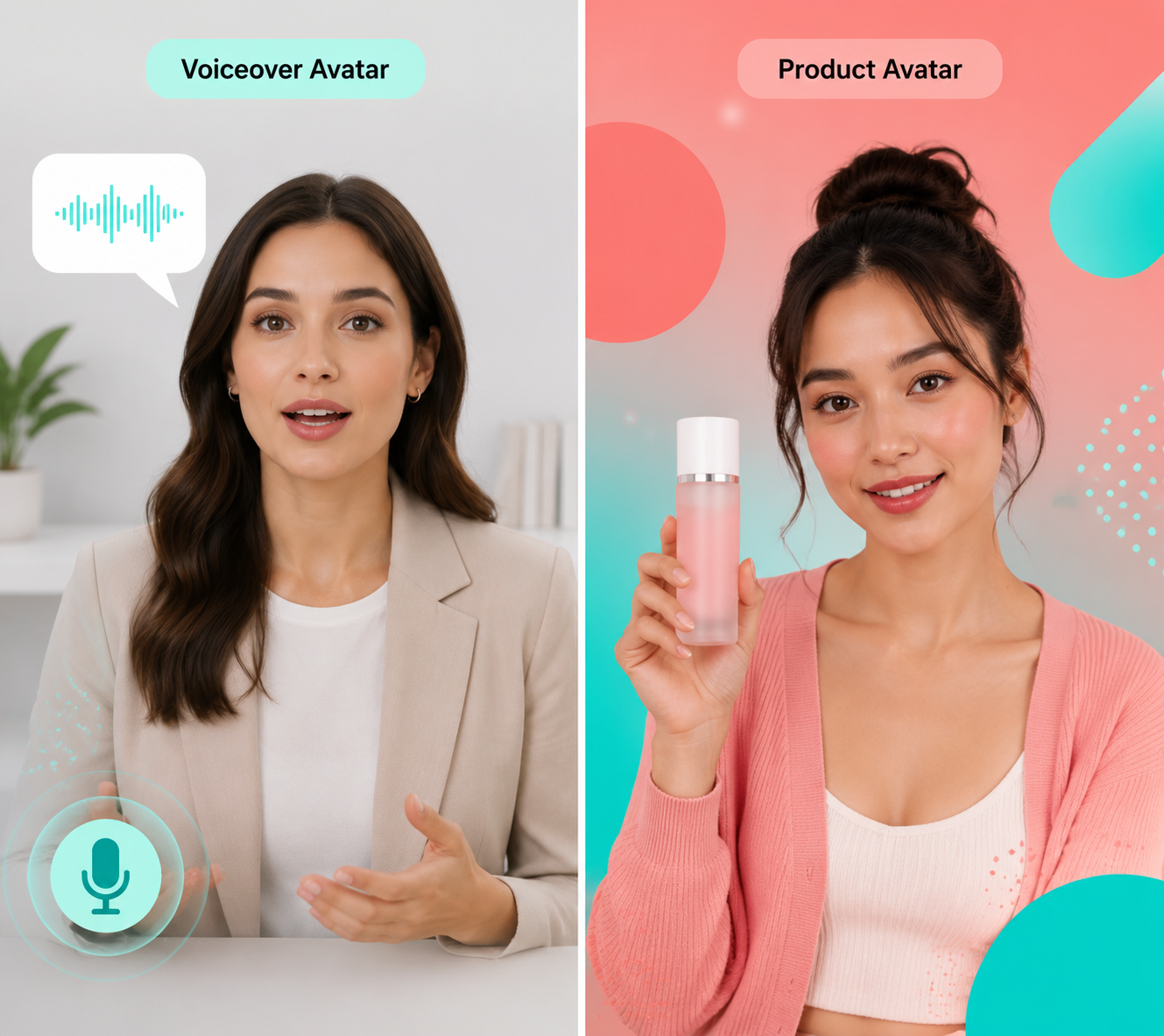
The first real decision is not the voice, the music, or the caption style. It is whether the ad needs a spokesperson or a product demonstration. TikTok splits the workflow into Voiceover avatars and Product avatars, and the difference matters because each one solves a different production gap.[2]
| Avatar module | Best use | What you provide | What Symphony generates |
|---|---|---|---|
| Voiceover Avatar | Talking-head ad, offer explainer, product pitch, localization test | Script or pre-recorded audio | A licensed stock avatar speaking the script or audio |
| Product Avatar | Product demo, apparel try-on style asset, app or phone-display concept | Product image plus script or audio | An avatar holding, wearing, or displaying the product |
Voiceover avatars are the faster choice when the ad is mostly verbal: a founder-style explainer, a promo read, a comparison angle, a reminder about a sale, or a localized version of an existing paid social script. TikTok describes these as licensed-actor stock avatars, with filters such as industry, gender, background, and region.[2] That filtering is useful when you are trying to avoid the dead-eyed generic presenter problem, but it does not turn the asset into creator footage. You are still selecting a synthetic spokesperson from a platform library.
Product avatars are better when the object needs to be visible in the ad rather than merely mentioned. TikTok's Product avatar workflow lets you upload a product image and choose modes where the avatar holds the item, wears it for clothing or apparel, or displays it on a phone for app-style use cases.[2] That makes it useful for producing a quick demo-style variation when the product shot exists but the human footage does not.
A simple rule works well here: if the claim is the hero, start with Voiceover; if the product interaction is the hero, start with Product. Do not force Product avatar just because it feels more advanced. A weak product image gives the model less to work with, and the final ad may look more artificial than a clean talking-head version with product overlays added later.
Build the First Draft: Avatar, Script, and Audio
Inside Symphony Creative Studio, start a new avatar video and pick the module you need. For a Voiceover avatar, browse the avatar library and apply filters until the presenter fits the category and market closely enough to test. For a Product avatar, upload the product image and choose the interaction mode before moving into the script or audio step.[2]
The script box is where many rushed ads get worse. TikTok supports typing or pasting a script directly, and it also supports uploading pre-recorded audio.[2] If the asset has to ship today, direct script entry is usually the cleanest route because you can revise the line, regenerate, and keep the workflow contained. Audio upload is useful when legal, brand, or localization teams have already approved a read and you need the avatar to match it.
TikTok's own script guidance is conservative in a good way: keep prompts simple, keep the scene focused, and avoid celebrity or trademarked references.[2] That is not just a policy nicety. A single-scene script is easier to lip-sync, easier to caption, and easier for a reviewer to understand. A prompt that asks the avatar to behave like a famous person, reference protected IP, change scenes, and deliver five claims in one breath is the kind of asset that creates more review work than it saves.
| Input choice | Use it when | Watch for |
|---|---|---|
| Typed or pasted script | You are still testing hooks, offers, languages, or CTAs | Overlong lines, crowded claims, and unnatural phrasing |
| Pre-recorded audio | The voice read is already approved or localized | Lip-sync mismatch, pacing issues, and edits that require re-upload |
| Product image | The ad needs a visible item, apparel, or phone/app display | Low-quality product cutouts, unclear scale, and awkward hand placement |
For a first paid test, write the script like an ad, not like a product page. Put the customer-facing problem or offer in the first line, keep the middle concrete, and end with one action. If the brand requires substantiation, use only claims that can survive review. Symphony can generate the asset quickly; it cannot make an unapproved claim safer.
A practical first-pass script shape
- Hook: name the use case, problem, or offer in plain language.
- Proof or product detail: explain what the viewer gets without stacking unsupported claims.
- Visual cue: if using Product avatar, mention the item only in ways the uploaded image can support.
- CTA: give one next action, not three competing actions.
A hypothetical skincare ad, for example, should not ask the avatar to claim a precise clinical result unless that claim has already been approved and substantiated. A safer first draft might frame the product around routine, texture, or offer terms that the brand can verify. The point is not to make the script timid; it is to avoid spending the time you saved on production inside policy review.
Use Advanced Editor to Make It Ad-Ready
The generated draft is not the finish line. The Advanced Editor is where the avatar video starts behaving like a TikTok ad instead of a synthetic read. TikTok lists controls for adding music from the Commercial Music Library, translating scripts into more than 30 languages with auto-lip-sync, generating and editing captions, replacing avatars without re-recording, and applying effects or stickers.[2]
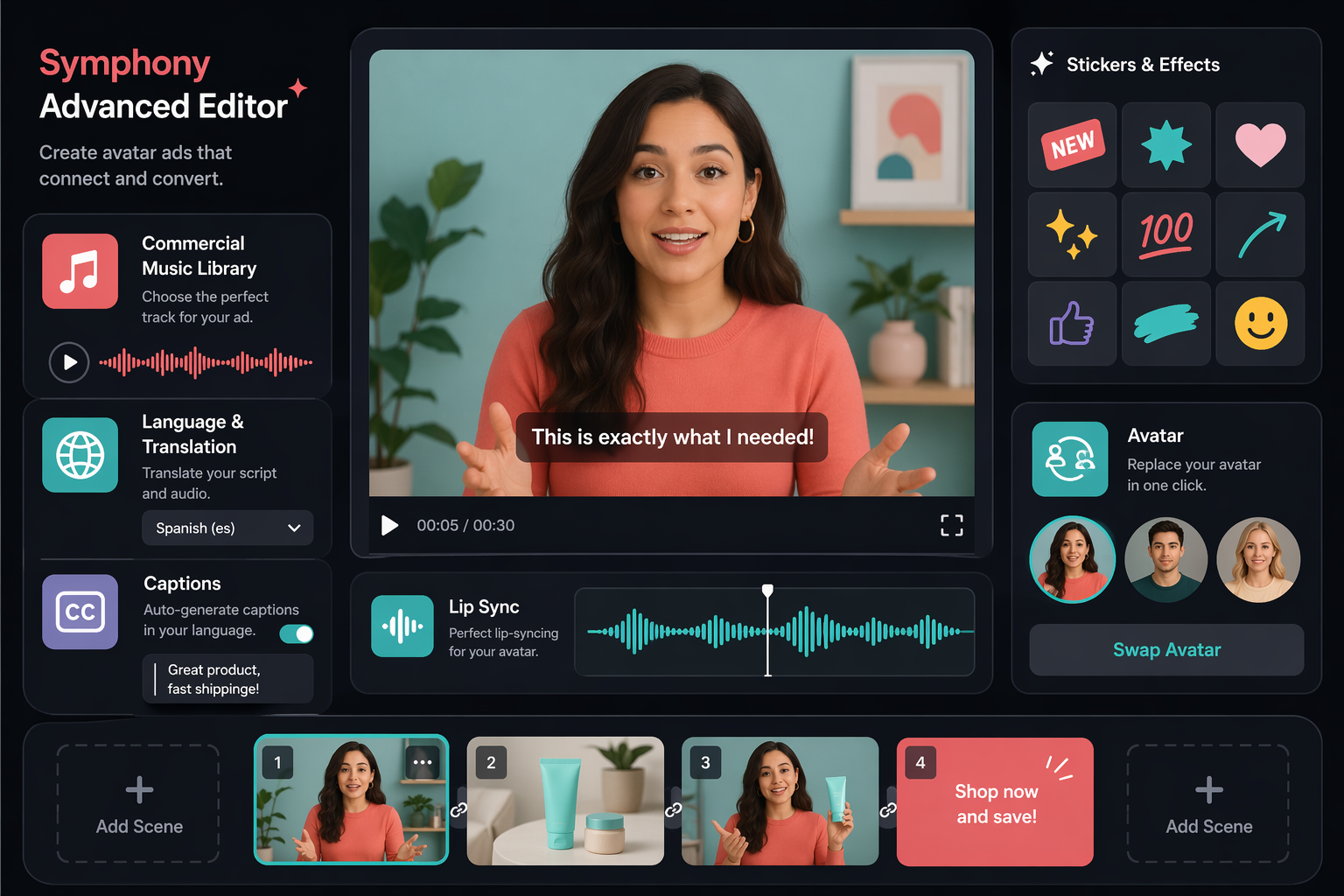
Start with captions. Auto-captions are useful, but they need the same review you would give any paid social subtitle file. Check product names, offer terms, prices if mentioned, and any words that can change the meaning of a compliance-sensitive claim. A caption error is not cosmetic when it changes what the ad promises.
Then add music only from the Commercial Music Library. This is not the place to drag in a trending sound from a personal account workflow. Paid usage rights matter, and Symphony's integration with TikTok's commercial music environment keeps that decision inside the platform's ad-safe lane.[2]
Translation is useful for variant production, especially when one approved concept needs to move across markets. Symphony supports translation into more than 30 languages with auto-lip-sync.[2] Treat that as a production accelerator, not as final linguistic approval. Before publishing translated versions, have a native speaker or qualified market reviewer check meaning, tone, idioms, claims, and whether the CTA fits the destination experience.
Avatar replacement is one of the more practical controls because it lets you change the presenter without rebuilding the whole creative. If the first avatar looks too formal for a discount offer, too young for a B2B service, or simply wrong against the product, replace the avatar and keep the script intact.[2] That is the kind of edit that matters on a Thursday afternoon: one message, several presenter treatments, no new shoot.
Effects and stickers should earn their space. Use them to clarify the offer, show a code, emphasize a deadline, or make a product benefit legible on mobile. Do not decorate the asset until the presenter, script, captions, and product visual are working. Bland AI output is often not caused by the avatar itself; it is caused by an ad that never made a sharp creative choice after generation.
Export: Download or Sync to Ads Manager
When the creative is ready, Symphony gives you two export paths: download the video locally as an MP4 or sync it directly to TikTok Ads Manager as a draft creative.[2] Use download when the asset needs offline review, legal approval, version archiving, or upload into another workflow. Use Ads Manager sync when the media buyer is ready to attach the creative to a campaign and keep momentum.
| Export path | Best for | Operational note |
|---|---|---|
| Download MP4 | Internal review, archiving, non-TikTok handoff, stakeholder approval | The file can be moved elsewhere, but Symphony does not directly publish to other platforms |
| Sync to Ads Manager | Fast TikTok launch workflow | The creative arrives as a draft and still needs campaign setup and moderation |
This is also where platform lock-in becomes practical rather than philosophical. Symphony is excellent when the destination is TikTok Ads Manager. It is less flexible if the team wants one generator to publish directly across multiple paid social platforms. A downloaded MP4 can travel, but the native workflow advantage is strongest inside TikTok.
What Happens Before Launch
Every exported Symphony avatar video carries an AI-generated label. TikTok announced Symphony Avatars with automatic labeling and C2PA Content Credentials support, so these assets are not designed to pass as ordinary creator posts.[3] That is a constraint, but it is also cleaner than leaving reviewers, creators, or customers guessing what they are seeing.
Moderation still applies before publishing.[2] Review the finished asset the way you would review any paid TikTok creative: claims, landing page consistency, restricted categories, prohibited references, commercial music usage, caption accuracy, and whether the AI label creates a trust issue for the message. A synthetic presenter making a sensitive claim can feel more jarring than a creator saying the same line, so do not separate policy review from creative review.
Lip-sync deserves a final human pass. Short scripts usually give you the best chance of clean mouth movement and natural pacing. Longer reads, translated scripts, and uploaded audio can expose mismatches. If the mouth movement distracts from the offer, cut the script, choose another avatar, or rebuild the version before pushing it into spend.
The same review standard applies to translation. Auto-translation can create a usable first version across many languages, but the risk is not only grammar. Market reviewers should check whether the benefit, CTA, product category language, and disclosure expectations still make sense. A fast localized variant is only useful if it does not create a support, legal, or brand problem after launch.
Where the Brand Case Studies Fit
The strongest reason to test Symphony is the workflow, not a promise that avatar ads will outperform creator footage. TikTok-published examples show that brands have used the tool for faster creative variation: American Eagle produced six unique AI video ads in under 24 hours, and Vodafone reported a 45% lower cost per lead in a premium segment using stock avatars.[4][5] Those examples are useful proof that the workflow can operate at brand scale, but they are still platform-published case studies rather than independent performance benchmarks.
That distinction matters for budget decisions. A case study can justify a test cell; it should not be treated as a forecast. If you want a wider view of how these examples compare with other AI marketing deployments, the patterns in 119 AI marketing case studies are more useful than treating one brand result as a universal rule.
A Clean Working Flow
- Confirm Ads Manager access and open Symphony Creative Studio.
- Choose Voiceover Avatar for a talking-head read or Product Avatar for a visible product interaction.
- Select or upload the required inputs: avatar, script or audio, and product image if needed.
- Generate the first draft and check whether the avatar, pacing, and product presentation are usable.
- Use Advanced Editor for captions, Commercial Music Library audio, translation, auto-lip-sync review, effects, stickers, and avatar replacement.
- Export by downloading the MP4 or syncing the creative to Ads Manager as a draft.
- Review AI labeling, claims, captions, translations, lip-sync, and moderation status before launch.
Symphony is not a replacement for every creator shoot, and it is not a guarantee that an avatar ad will beat human-shot creative. It is a fast, free, platform-native way to produce testable TikTok avatar creatives when the account needs more variations now. That is enough reason to use it carefully: keep the script simple, make the avatar choice deliberately, use the editor instead of accepting the first render, and launch only after the same review you would apply to any paid asset.
References
- Introducing Symphony Creative Studio, TikTok for Business.
- How to create avatar videos with Symphony Creative Studio, TikTok Ads Help Center, updated 2026.
- Announcing Symphony Avatars, TikTok Newsroom.
- American Eagle uses Showcase Products to produce AI video ads, TikTok for Business.
- Vodafone uses Digital Avatar to drive premium segment leads, TikTok for Business.
Comments
Join the discussion with an anonymous comment.