
Instagram DMs Not Loading? Here's the Marketer's Fix
Instagram DMs not loading for your business account? This guide helps social media marketers quickly diagnose whether the problem is a server outage, an app glitch, or an account permission issue — starting with a 60-second check on Instagram Web to avoid wasted time on generic fixes.
When Instagram DMs stop loading on a business or creator account, the first fix is not deleting the app. It is not asking the team whether anyone changed the password. It is a 60-second check: open Instagram Web in a desktop browser, log into the same account, and try to load the inbox there.
That one check separates the problem into the right category. If DMs work on Instagram Web, the account can still reach messages and the mobile app is the likely failure point. If DMs do not load on Web either, stop burning time on phone-level fixes and move toward outage, restriction, or business permission checks. Several current troubleshooting guides point to Instagram Web as a useful shortcut for isolating DM problems before cycling through app fixes.[1][2]
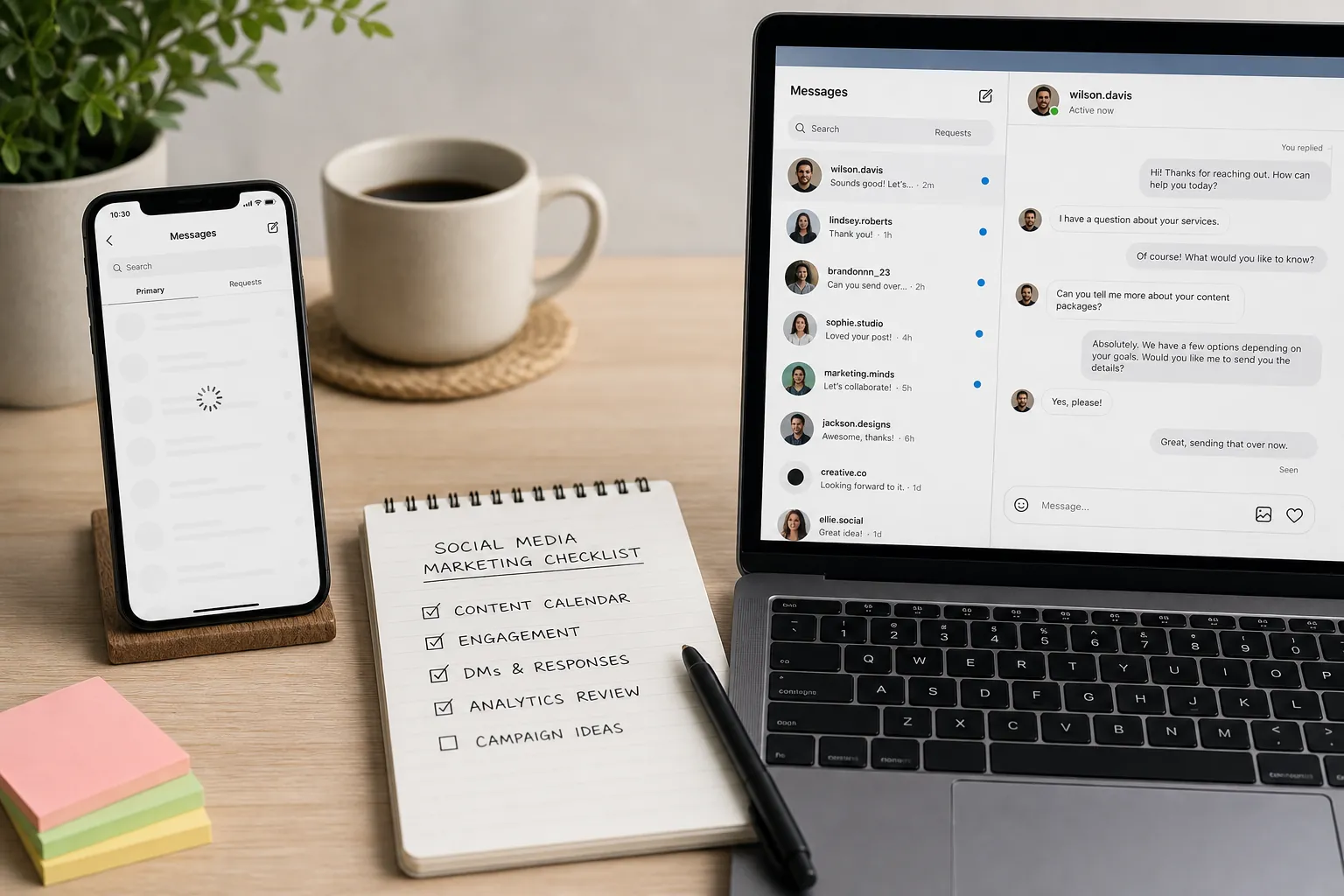
Start With Instagram Web
Use the same account that is failing on mobile. Go to Instagram in a desktop browser, open Messages, and test three things: whether the thread list loads, whether an existing conversation opens, and whether a short reply sends.
| What happens on Instagram Web | What it means | What to do next |
|---|---|---|
| DMs load and messages send | The account is probably fine; the mobile app or device session is the likely issue | Run the app-level fix sequence |
| DMs are blank, spinning, or fail to send on Web too | The issue is not isolated to the mobile app | Check for an outage, account restriction, or business permission problem |
| DMs load on Web but a connected automation or comment-to-DM flow fails | Manual messaging may be working while a connected tool has lost access | Check Connected Tools and message access permissions |
For a social media marketer, this matters because the next ten minutes are usually visible to someone else: a customer waiting for support, a lead responding to a campaign, a client watching Slack, or a sales team asking whether the giveaway replies are coming through. The Web check gives you a defensible answer before you start making changes.
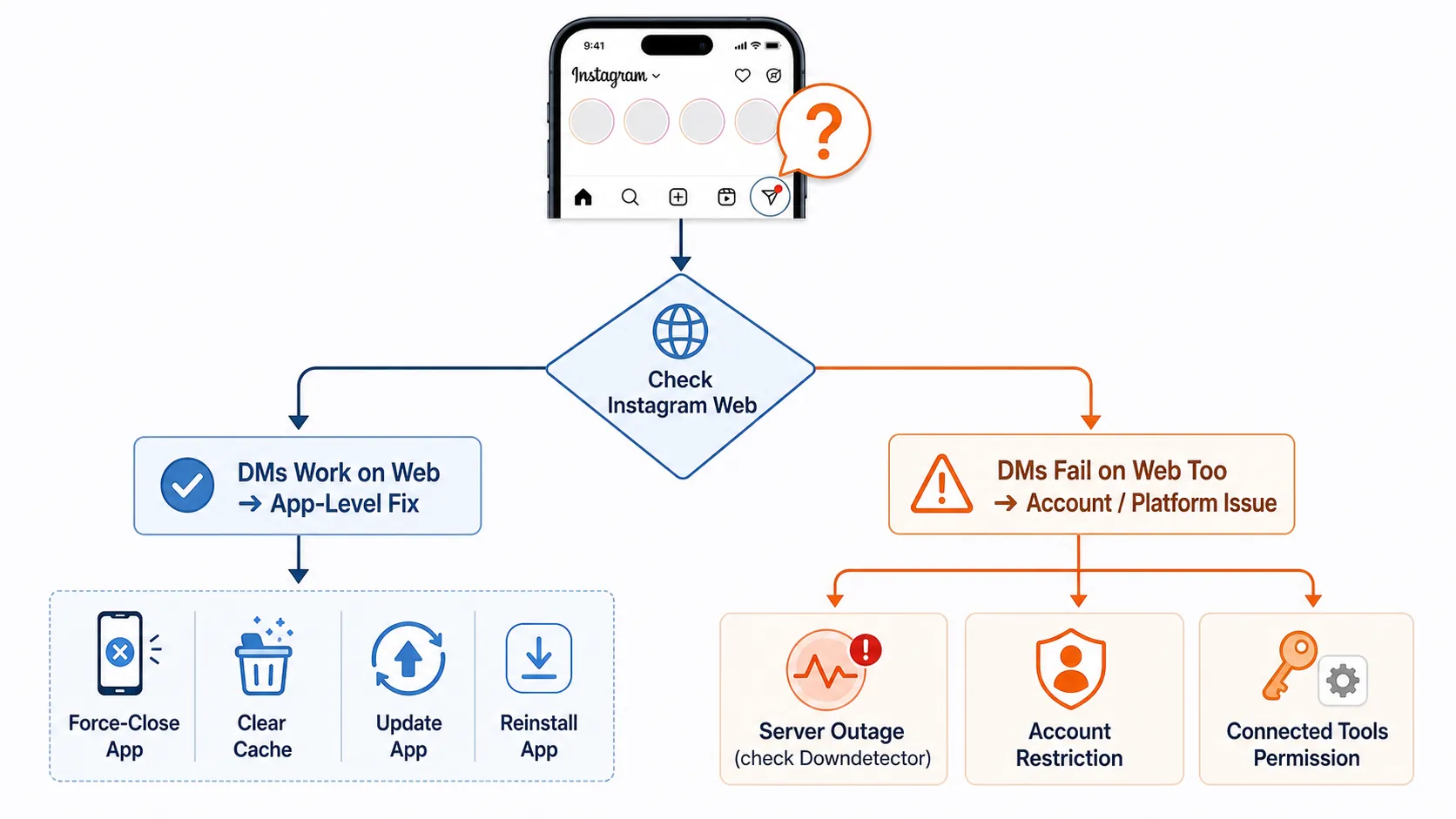
If DMs Work on Web, Fix the App in This Order
When Instagram Web loads the inbox normally, do not jump straight to reinstalling. Reinstalling can work, but it is the slowest app-side fix and may interrupt logged-in sessions, notification settings, or team handoff. Start with the lowest-friction steps and escalate only if the inbox still fails.
- Force-close Instagram and reopen it. This clears the active app session without touching account settings.
- Clear the app cache where the operating system allows it. On Android, use Settings > Apps > Instagram > Storage > Clear Cache. On iOS, there is no equivalent one-tap cache clear, so offloading or reinstalling the app is the practical cache reset path.[1][2][3]
- Update Instagram. If the failure is tied to an app bug that has already been patched, updating is faster than rebuilding the device setup.
- Reinstall Instagram. Use this after the lighter steps, especially if Web continues to work and only the mobile app stays blank or stuck.
The order is the point. Force-close first because it costs almost nothing. Cache next because corrupted local data can make one feature misbehave while the rest of the app appears normal. Update before reinstall because the fix may already exist. Reinstall last because it is the broadest reset. InstantDM and Spur both describe the common app-level path as force-close, cache clearing, app update, and reinstall, with the Android versus iOS cache distinction echoed across troubleshooting guides.[1][2][3]
After each step, test the same action that failed: load the inbox, open one thread, and send a short message. If it works, stop. There is no operational prize for completing every fix after the inbox has recovered.
Do Not Lose the Browser Workaround
If Web works but mobile is still broken, keep Web open while you troubleshoot. That gives the community manager a place to answer urgent DMs instead of disappearing from the conversation while the app is being reset. It also gives you a clean sentence for internal updates: “Messages are available on Instagram Web; we are troubleshooting a mobile app issue.”
If Web Fails Too, Check Whether Instagram Is Down
A blank inbox on both mobile and Web changes the diagnosis. At that point, the phone is no longer the main suspect. Check Downdetector, Meta status surfaces available to your team, and trusted social or newsroom coverage before changing account settings.
This is not theoretical in 2026. On March 11, an Instagram outage that affected DMs peaked at more than 13,000 Downdetector reports, according to coverage from Forbes and PiunikaWeb.[4][5] On June 12, another widespread Meta disruption drew more than 10,000 Instagram reports and more than 62,000 Facebook reports on Downdetector, according to the New York Post.[6] Those are user-reported outage signals, not Meta-confirmed incident counts, but they are enough to keep a marketer from blaming a device when the pattern is wider.
If the signals point to a platform outage, switch from fixing to documenting. Capture the time the issue began, the surfaces affected, screenshots from mobile and Web, and any external outage source you are relying on. For a broader response sequence, use the Instagram Outage Response Protocol for Social Media Marketers or the Facebook and Instagram Outage Playbook for Paid Media Teams. Keep the immediate task narrower: confirm whether you are in the outage branch before you waste time on app surgery.
If It Is Not an Outage, Inspect the Account
When DMs fail on Web and mobile, and there is no clear outage pattern, move into account-level checks. This is where generic consumer advice usually runs out of usefulness. Business and creator accounts can have connected tools, message access permissions, role-based admin confusion, or restrictions that make the inbox behave as if it is broken.
Check Connected Tools and Message Access
For accounts using automation, comment-to-DM flows, CRM routing, or third-party inbox tools, check whether Instagram still allows connected tools to access messages. In Instagram settings, look for the business or creator account area connected to Messages, Story replies, or Connected Tools, then verify that “Allow access to messages” is still enabled.
A June 2026 ManyChat community thread described a pattern where Meta app updates appeared to toggle “Allow access to messages” off, causing Instagram DM automations tied to comment leads to stop working for days until the permission was restored.[7] That should be treated as a reported practitioner pattern, not an officially acknowledged Meta bug. Still, it belongs high in the diagnostic path because it is fast to check and exactly the kind of invisible setting change that can make a marketing setup look broken.
The key distinction is whether manual DMs work. If a human can open and send messages inside Instagram but a connected workflow fails, the problem may sit between Instagram and the tool rather than inside the inbox itself. In that case, check the connected app authorization, the business integration, and any workflow-specific error logs before telling the client that Instagram DMs are down.
Look for Account Restrictions
If the inbox loads but sending fails, or if only certain actions are blocked, check Account Status and any notifications from Instagram about restricted activity. This is especially important after a campaign with unusually high manual outreach, repeated copy-paste replies, giveaway traffic, or a sudden spike in new conversations.
Be careful with DM limit numbers. Some practitioner guides cite rough manual sending ranges such as 50 to 70 DMs per day, while CreatorFlow distinguishes those community-estimated manual limits from Meta developer documentation around API usage, including a cited 200-per-hour API cap.[8] The practical takeaway is not to treat forum ranges as official policy. If the account has been sending aggressively and Instagram is blocking actions, restriction is plausible; if the inbox is blank everywhere during a known outage, a sending-limit theory is a distraction.
Confirm Who Has Access
For teams, also verify that the person troubleshooting is using the correct Instagram account and has the expected role in the connected Meta business setup. A role or connection issue can look like a broken inbox when the actual problem is that the user no longer has the same access path they had last week.
This check is less dramatic than reinstalling the app, but it is often safer. If the issue sits in permissions, reinstalling Instagram on one phone only proves that one phone can still fail.
A Fast Triage Script for the Team
When a client or internal team is waiting, use a short status note that matches the diagnostic branch. The goal is to avoid both panic and false certainty.
- If Web works: “Instagram DMs are accessible on desktop. The issue appears isolated to the mobile app, and we are responding from Web while we reset the app.”
- If Web fails and outage signals are visible: “DMs are failing across Instagram surfaces, and external outage reports are rising. We are documenting the disruption and monitoring recovery.”
- If manual DMs work but automation fails: “Manual Instagram messaging is working. The issue appears tied to connected tool permissions or automation access, which we are checking now.”
- If sending is blocked after heavy outreach: “The inbox loads, but sending actions appear limited. We are checking account status and reducing manual DM activity while we verify restrictions.”
That language protects response time and credibility. It tells people what is known, what is still being checked, and whether customers can still be answered somewhere.
When to Escalate
Escalate when the category is clear but the fix is outside the community manager’s control. If Web and mobile fail during a platform-wide outage, move to the outage protocol and client communications. If Connected Tools lost message access, restore the permission or involve the tool owner. If Account Status suggests a restriction, stop repeated sending and collect the evidence needed for review. If only one device fails after Web works, keep the browser workaround active and finish the app reset sequence.
Instagram DM failures feel chaotic because the symptom is the same: a blank inbox, a spinning thread, or a message that will not send. The fixes are not the same. Checking Instagram Web first turns the problem from “Instagram is broken” into a category decision: app, outage, permission, restriction, or escalation.
References
- Fix Instagram DM Glitch: InstantDM
- Instagram DMs Not Working: Spur
- Beebom Instagram troubleshooting guide: Beebom
- Instagram Down: New Outage Leaves Users Unable To Post Or DM: Forbes, March 11, 2026
- Instagram messages not loading, blank page: PiunikaWeb, March 11, 2026
- Instagram and Facebook hit with widespread outage: New York Post, June 12, 2026
- Instagram DMs not working for comment leads for 10 days: ManyChat Community, June 2026
- Instagram DM Compliance: Meta Rules: CreatorFlow
This is a record of what happened and what was tested, not legal advice. Compliance determinations require qualified counsel.